Meta Business Verification Button Missing? What to Check
If the Meta Business Verification button is missing, start by checking the selected business portfolio, your access, and the requirement you are trying to complete.
A missing Start Verification button does not, by itself, prove that your business has been rejected or that the account is broken.
The useful next step is to identify what the account actually shows and whether you are following the appropriate verification process.
Why Might the Start Verification Button Not Appear?
Business verification is available to eligible portfolios, and not every business needs to complete it. Gupshup’s published guidance says that when the button is unavailable, businesses should confirm whether the product or feature they want to use requires verification. It also identifies full control of the portfolio as a prerequisite for completing the process.
That gives you three starting questions:
-
Am I viewing the correct business portfolio?
-
Do I have the required access?
-
Which product or account instruction requires verification?
Answer these before making changes.
1. Confirm the Selected Business Portfolio
If you manage several businesses, check the portfolio name and identifier.
An account can have access to multiple business environments, and similar names can make it easy to inspect the wrong one.
Compare the selected portfolio with the business mentioned in your verification request or project brief.
Record:
If another team member can see a verification option, first confirm that both of you are viewing the same portfolio.
2. Review Your Access
Check your permissions for the portfolio itself rather than assuming that access to a Page or advertising account is sufficient.
Ask an authorized administrator to review the relevant access if you are unsure. Explain the task you need to complete instead of requesting broad permissions without context.
Do not ask another person to share their login credentials. Use the appropriate access arrangement for the business.
If the access requirement is already satisfied, continue to the next check rather than repeatedly changing roles.
3. Identify the Requirement Behind Your Search
Write down why you need business verification.
For example, did you receive a request in your account, encounter a requirement during a product setup, or follow a tutorial that suggested verification?
These situations need different investigation.
| Your situation |
What to check |
| An account notification requests verification |
The portfolio and starting instructions named in the request |
| A product setup asks for verification |
The verification route associated with that product |
| A provider says verification is needed |
The exact feature, business, and documented requirement |
| A tutorial shows a button you cannot see |
Whether the tutorial applies to your current setup |
| No product or account request is involved |
Whether verification is necessary for your intended use |
Gupshup’s guidance specifically recommends referring to the instructions in a verification notification or email when one has been received.
4. Read the Entire Verification Section
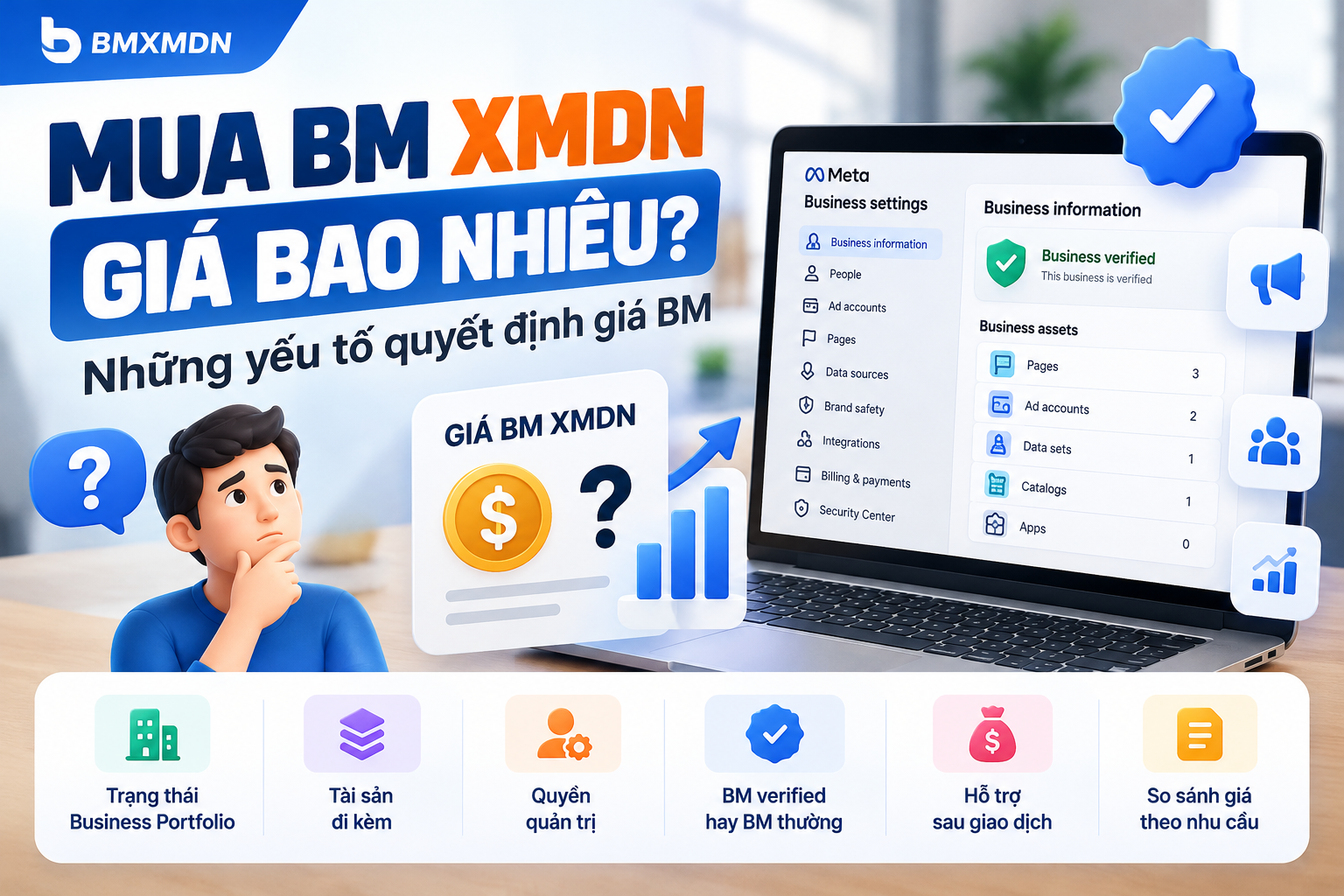
Open the relevant business settings and inspect the Security Center.
Look for explanatory text, an existing status, or an instruction to continue a process. Do not focus only on whether a particular button is present.
Record the exact wording. A message describing eligibility is different from an unfinished confirmation step or an application already under review.
The following are descriptions of situations to investigate, not a fixed list of interface labels:
-
Verification is already complete.
-
A submission is being reviewed.
-
An action remains unfinished.
-
Verification is unavailable for the current flow.
-
The account provides another starting instruction.
Use the information actually displayed in your account to choose the next step.
5. Review Business Information Without Assuming It Will Unlock the Button
Check that your business information is accurate and that you understand any incomplete fields.
However, do not assume that adding a website, changing a phone number, or filling every field will automatically make verification available.
Completing accurate information and establishing eligibility are different questions.
If you find an error, document it and follow the available correction process. Avoid making unrelated changes merely to test whether the interface reacts.
6. Separate a Display Problem from an Eligibility Question
If the page fails to load, shows an error, or appears incomplete, treat that as a separate observation.
You can try reloading the page or opening the same account in a supported, updated browser. Record whether the result changes.
A normal page with no verification option is different from a page that cannot load at all.
Do not assume that clearing browser data will change an eligibility decision. Basic browser troubleshooting is useful for display errors, but it does not establish why a feature is unavailable.
What Should You Avoid Doing?
Avoid making unnecessary changes based on promises that a particular action will always unlock verification.
Do not create unrelated assets or supply inaccurate business information solely to trigger a button. Similarly, purchasing another portfolio does not explain why your own business lacks the option.
If a provider offers to help, ask it to identify the observed issue, the assistance it will perform, and any outcome outside its control.
You can review the Meta Business Verification and Tech Provider services listed on BMXMDN and request a scope tied to your actual setup.
Prepare a Useful Support Request
When seeking clarification, provide enough context to distinguish an access issue from a workflow or eligibility question.
Use this template:
Hello, I cannot find the Start Verification option for business portfolio [ID]. We need verification for [product or requirement]. My access is [describe confirmed access], and the verification section currently displays [exact wording]. We received [notification details, if applicable]. Could you clarify the appropriate verification route and whether any action is required from our business?
Include a relevant screenshot with unnecessary sensitive information removed.
Keep passwords, authentication codes, and unrelated business documents out of the initial request.
Frequently Asked Questions
Does a missing verification button mean my business was rejected?
No. A missing option alone does not establish a rejection. Check the actual status and explanation shown in the account.
Will completing Business Info make the button appear?
Keep business information accurate, but do not treat completion as a guaranteed way to unlock verification. Check the applicable eligibility and product requirements.
Should I create a new portfolio?
First establish why the current option is unavailable. A new portfolio may leave the original requirement unresolved.
Can I use someone else’s account to start verification?
Use an authorized representative with appropriate access. Do not rely on shared login credentials.
What should I send a support provider?
Send the portfolio ID, intended use, confirmed access, exact account message, and any relevant notification. Share additional records only when necessary for the agreed task.
Find the Correct Verification Route
A missing button is a starting point for investigation, not a diagnosis. Confirm the portfolio, permissions, and actual requirement before changing your setup.
If you need assistance reviewing your situation, visit BMXMDN and explain the requirement you are trying to satisfy. Request a proposal that clearly identifies the work included, the information you must provide, and how progress will be documented.